
An assistant with the guardrails you set
The assistant and the MCP server use the same tools and the same permission checks. You decide what AI can see, what it can change and which model it talks to.
What happens when you ask a question
-
Choose the target
Pick one tab, or all open terminals. The target cannot change while the assistant is answering.
-
Ask in your own words
For example, “check disk usage on the open server”. Enter sends; Shift+Enter adds a line.
-
The model looks first
It gets safe metadata about the tabs in scope and may read their output. It never gets whole tabs automatically.
-
You approve the change
Anything that connects, types, runs or touches a file shows a card with the session, address and exact command.
-
Gimotty types it for you
The command goes into your existing session, and Gimotty waits for the real output.
-
The answer uses real output
Tables and code blocks can be copied. Stopping the chat cancels pending model calls and approvals.
What needs your approval
Runs without asking
- List saved sessions and read their safe details
- List open terminals
- Read and wait for terminal output
- List files in a folder
- Diagnostics
Waits for you
- Open a connection
- Type into a terminal or resize it
- Run a command
- Read, write, upload or download a file
Three answers to every request
- Approve once
- Runs this call only.
- Allow this conversation
- The same tool on the same terminal or session runs without asking until you clear the chat.
- Reject
- Nothing runs, and the model is told you said no.
A request left unanswered for 5 minutes is marked “Approval expired · not run” and recorded in the audit log.
What your model receives
- The messages you type
- The tool descriptions
- Metadata of the open tabs in scope (up to 32)
- The results of the tools it actually called
What it never receives
- Passwords from the vault, or the password you logged in with
- Whole terminal tabs, attached automatically
- Your API key for any other provider
If you let the assistant read a terminal, server information in that output goes to the provider you chose. Pick the model with that in mind; a local model keeps it on your network.
Supported model connections
| Connection | API | Base URL |
|---|---|---|
| OpenAI | Responses | https://api.openai.com/v1 |
| OpenAI-compatible server (for example vLLM) | Chat Completions | Your server’s /v1 URL |
| Ollama on your PC | Chat Completions | http://localhost:11434/v1 |
- Remote servers must use HTTPS. Plain HTTP is allowed for loopback, and for private addresses (10.x, 172.16–31.x, 192.168.x, fc00::/7) after you turn it on and confirm a warning.
- Redirects are not followed. Gimotty never picks or downloads a paid model for you.
- API keys can stay in memory for the session, come from an environment variable, or be saved with Windows DPAPI for your account, tied to the base URL they were saved for.
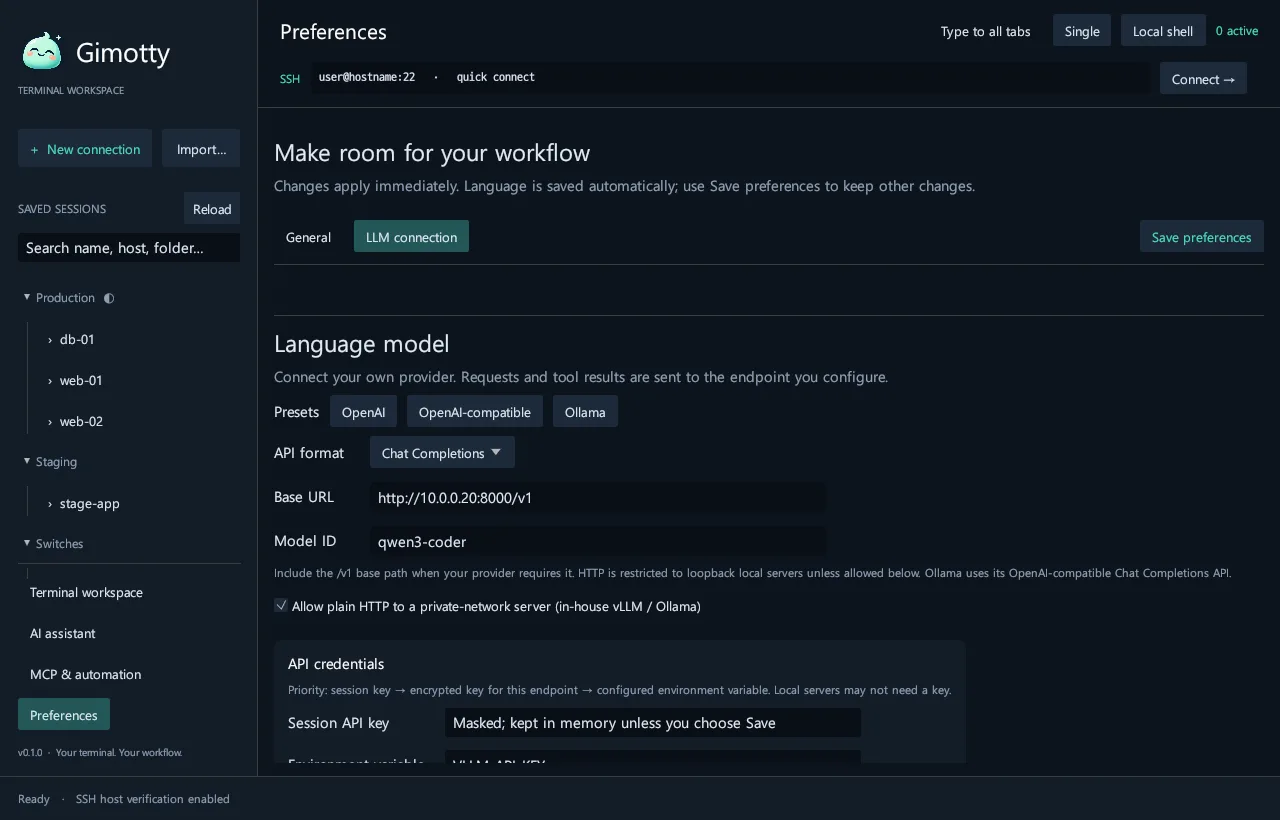
Decide what AI can see, folder by folder
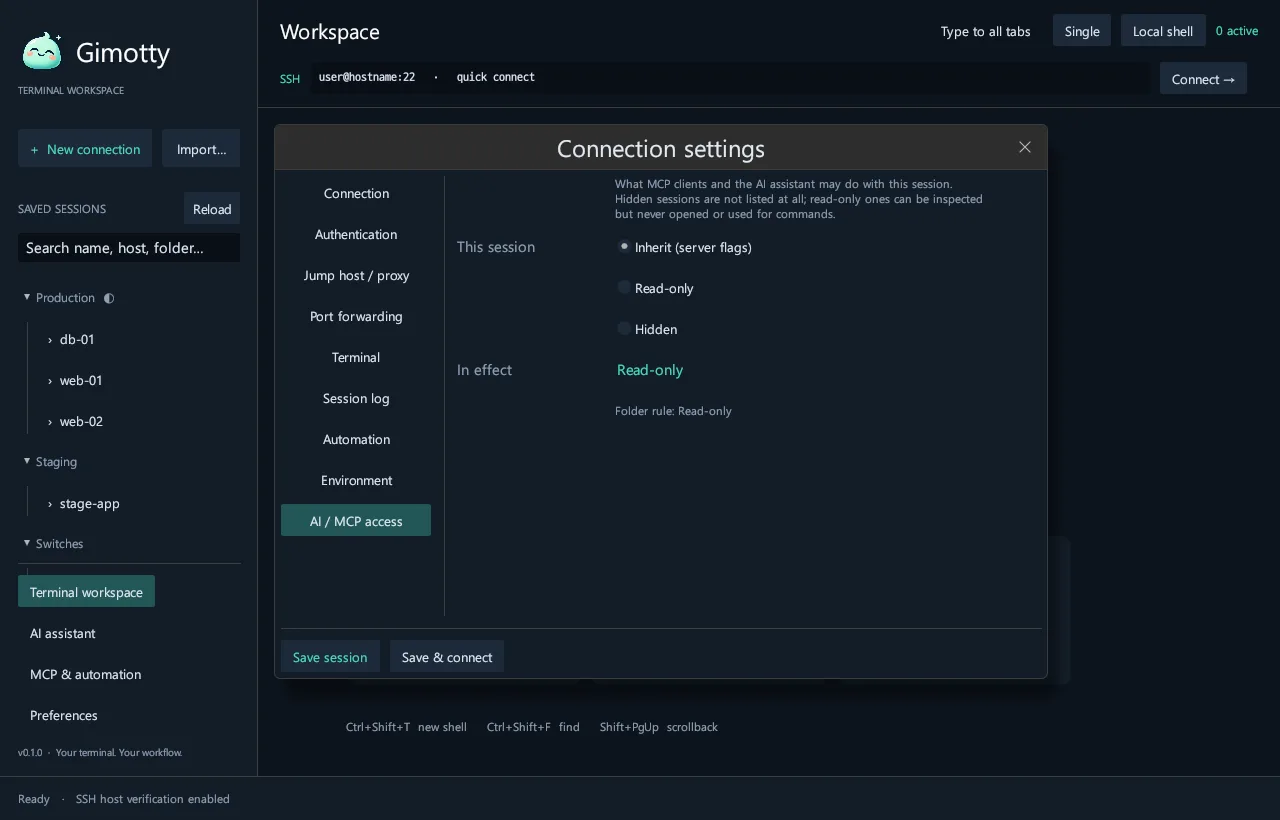
Each saved session or folder has an AI access level. The assistant and the MCP server both follow it.
| Level | What AI gets |
|---|---|
| Inherit | The folder’s rule. Full access by default, within the server’s startup flags. |
| Read-only | Listed and described, but no terminals, commands or file tools. |
| Hidden | Not listed. Every tool answers “not found”. |
The MCP server
Run gimotty mcp from any MCP client that starts local stdio servers, such as Claude Desktop, Claude Code or Cursor. It opens no network port.
| Started with | What clients can do |
|---|---|
| No flags | Read saved-session metadata and diagnostics |
--allow-connect | Open terminals on saved SSH, Telnet, Rlogin and raw TCP sessions; list and read files |
--allow-write | Type into terminals, run commands, write, upload and download files |
--allow-local | Use local shells and serial lines, and any local path for file tools |
16 tools in four groups
- Look up
sessions_listsessions_getdiagnostics- Terminal
terminal_openterminal_listterminal_readterminal_waitterminal_writeterminal_resizeterminal_close- Command
command_execute- Files
file_listfile_readfile_writefile_downloadfile_upload
- Up to 8 requests run at once, with cancellation and progress notifications.
terminal_waitwaits for a pattern or a quiet screen, so clients do not poll.- Without
--allow-local, file tools can only use Gimotty’s transfers folder on your PC. - MCP never asks for or stores passwords, and never reads the vault. It connects with keys or an SSH agent.
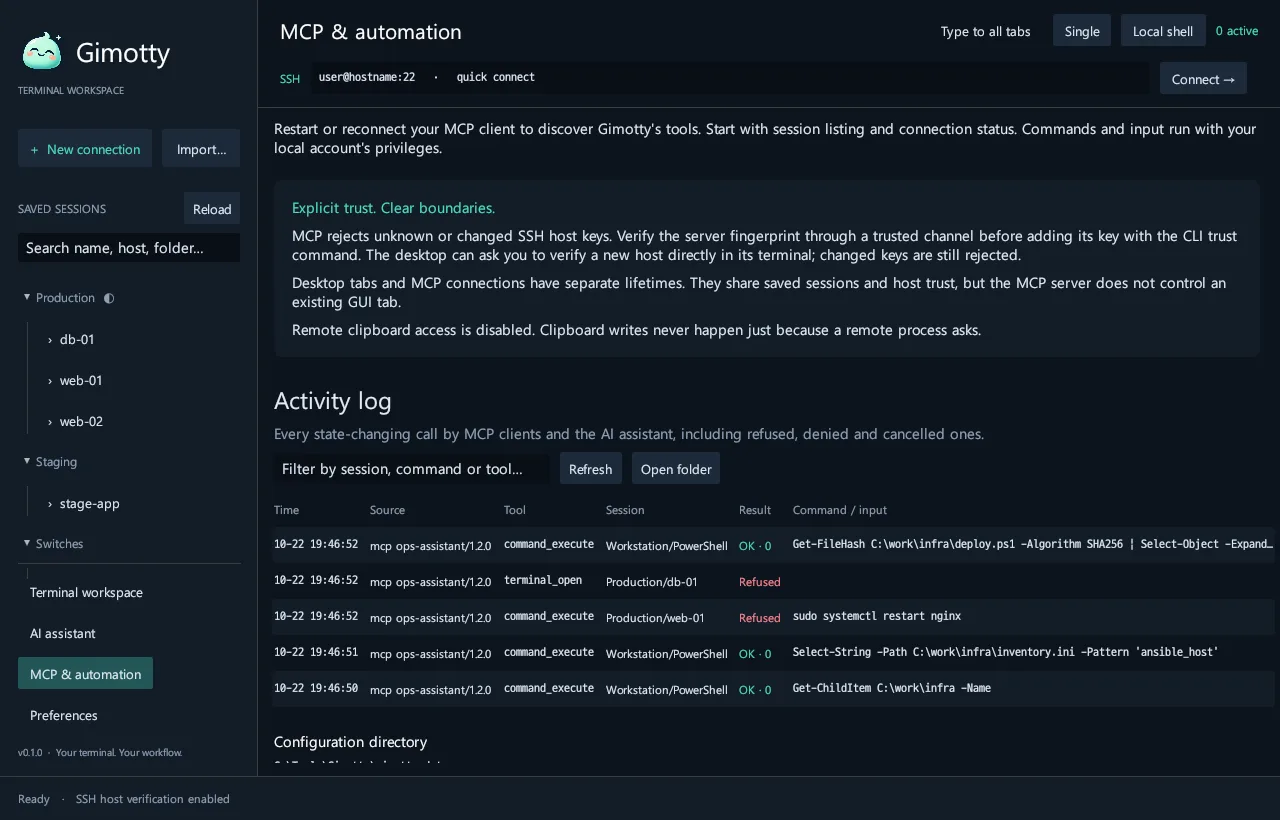
The audit log
Every connection, input, resize, close, command and file call is written to audit/audit-YYYY-MM.jsonl in your Gimotty folder, with the time, source (assistant or MCP), client, session, target, command or path, result, exit code and duration. Open it from the MCP and automation screen or with gimotty audit.
Call tools without a model
The assistant’s menu can run any MCP tool directly with JSON arguments, under the same permission checks. Useful for testing access rules before you connect a model.

Try it on your own servers
Every feature is free for 14 days. No account, no credit card.